
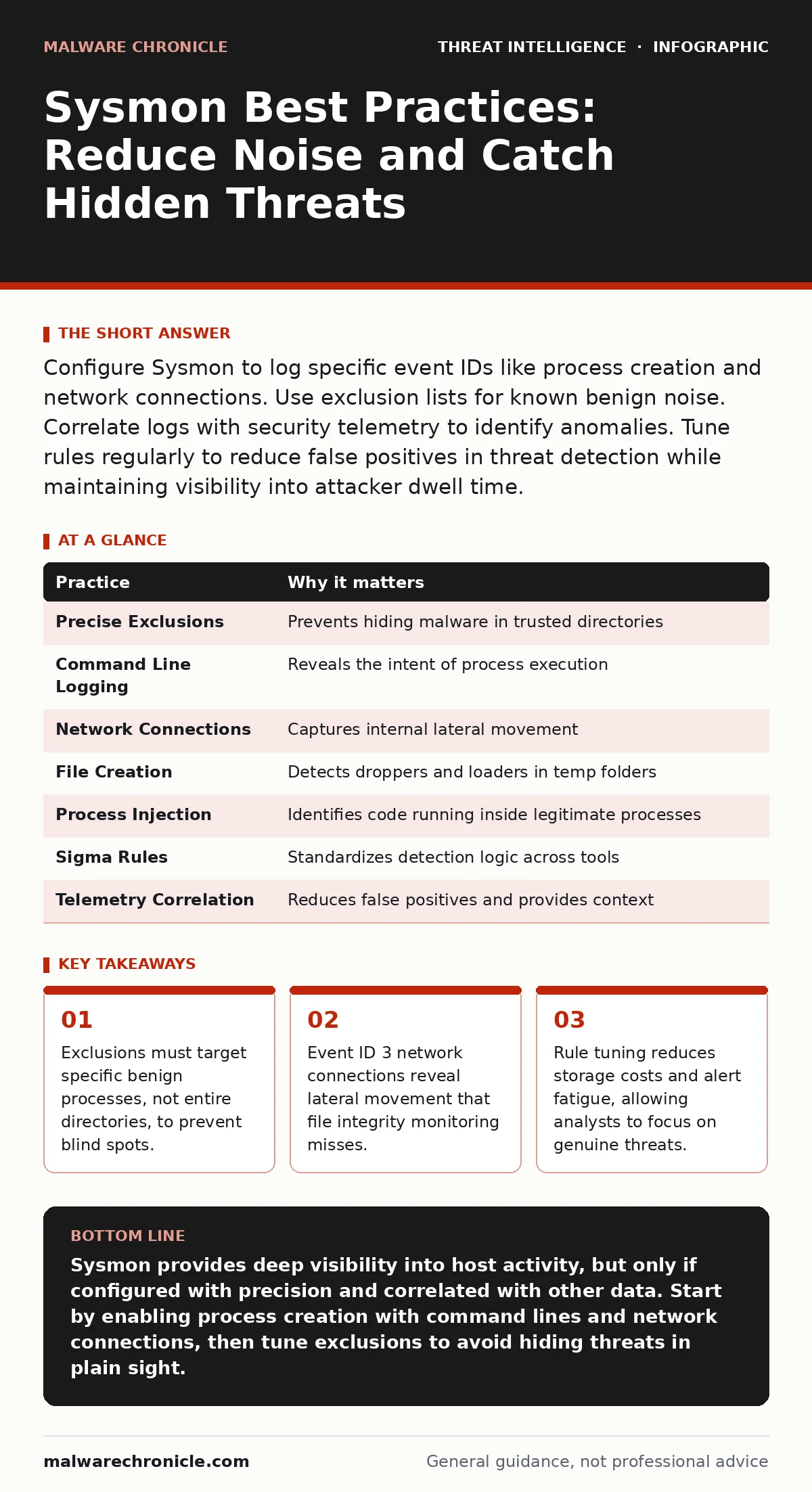
Configure Sysmon to log specific event IDs like process creation and network connections. Use exclusion lists for known benign noise. Correlate logs with security telemetry to identify anomalies. Tune rules regularly to reduce false positives in threat detection while maintaining visibility into attacker dwell time.
The Baseline Problem
Sysmon is a Windows system service and device driver that logs system activity to the Windows Event Log. It captures events that the standard Windows audit policy ignores, such as process creation details and network connection metadata. By default, Sysmon logs almost nothing. You must configure it to record specific event IDs. Without this configuration, you gain nothing but increased disk usage from empty log entries.
The default behavior is silent. You must define what matters. This requires a shift from passive logging to active monitoring. You are not just recording history; you are building a forensic timeline.
1. Define Exclusions with Precision
Excluding noisy applications is necessary for performance. However, broad exclusions create security gaps. If you exclude an entire directory like C:\Program Files\Microsoft Office, you hide malicious activity running under that path. Attackers often place tools in trusted directories to evade detection. This is a common error in initial deployments.
Exclude only specific, known benign executables. Verify the file signature or path hash before adding it to the exclusion list. This ensures that a renamed malware binary does not slip through your filters.
2. Log Process Creation with Command Lines
Event ID 1 logs process creation. The default configuration often omits the command line arguments. Attackers use command-line switches to execute scripts or download payloads. Without these arguments, you see that a process started, but not what it did. This limits your ability to reconstruct an attack chain.
Enable the CommandLine option in Event ID 1. This provides the full execution string. You can then detect suspicious patterns, such as PowerShell commands with encoded instructions. This detail is vital for understanding the intent behind a process launch.
3. Monitor Network Connections
Event ID 3 logs network connections. This includes the source and destination IP addresses and ports. Standard network monitoring often misses local lateral movement. Attackers move between machines on the internal network without touching the internet. Sysmon captures this internal traffic at the host level.
Enable Event ID 3 and log the Image and CommandLine fields. This links the network activity to the specific process that initiated it. You can identify which application is communicating with a suspicious IP address. This correlation is difficult to achieve with network packet capture alone.
4. Track File Creation
Event ID 11 logs file creation. This is useful for detecting droppers and loaders. Malware often creates temporary files to store payloads. Standard file integrity monitoring focuses on changes to existing files. It does not always catch new files in user directories or temporary folders.
Enable Event ID 11 for specific paths like %TEMP% and user profiles. This captures the birth of malicious artifacts. You can correlate these files with process creation events to see what created them. This helps in identifying the initial infection vector.
See also: Endpoint Telemetry Definition: Purpose, Components, and Integration · Process Injection Mechanics: Step-by-Step Execution Flow
5. Detect Process Injection
Event ID 10 logs process injection. This includes techniques like CreateRemoteThread and NtWriteVirtualMemory. Attackers use injection to hide their code inside legitimate processes. This evades simple process name filtering. The malicious code runs in the context of a trusted application.
Enable Event ID 10 and log the SourceImage and TargetImage. This shows which process injected code into which other process. You can detect anomalies where a web browser injects code into a system process. This is a strong indicator of compromise.
6. Use Sigma Rules for Detection
Raw logs are difficult to analyze. Sigma rules provide a standardized way to write detection logic. They are platform-agnostic and can be translated into various query languages. This allows you to share detection logic across different security tools.
Adopt a library of Sigma rules relevant to your environment. Translate them into your SIEM or log analysis tool. This accelerates your detection capabilities. You can focus on tuning rules rather than writing them from scratch. This approach reduces the time to detect indicators of attack.
7. Correlate with Security Telemetry
Sysmon data is powerful but isolated. It needs context. Correlating Sysmon logs with other security telemetry provides a fuller picture. For example, a suspicious process creation might correlate with a failed login attempt. This multi-source view reduces false positives in threat detection.
Integrate Sysmon logs into your central logging platform. Use correlation rules to link events. This helps in identifying complex attack chains. You can see the progression from initial access to lateral movement. This holistic view is critical for reducing attacker dwell time.
| Practice | Why it matters |
|---|---|
| Precise Exclusions | Prevents hiding malware in trusted directories |
| Command Line Logging | Reveals the intent of process execution |
| Network Connections | Captures internal lateral movement |
| File Creation | Detects droppers and loaders in temp folders |
| Process Injection | Identifies code running inside legitimate processes |
| Sigma Rules | Standardizes detection logic across tools |
| Telemetry Correlation | Reduces false positives and provides context |
8. Regularly Tune Rules
Detection rules degrade over time. New software updates may trigger false positives. New attack techniques may bypass existing rules. Regular tuning is necessary to maintain effectiveness. This involves reviewing alerts and adjusting thresholds.
Schedule monthly reviews of your detection rules. Update exclusions for new benign software. Add new Sigma rules for emerging threats. This keeps your detection capabilities current. It ensures you are not overwhelmed by noise.
9. Validate with Red Teaming
Theory differs from practice. You must test your configuration against real-world scenarios. Red teaming simulates attacker behavior. This reveals gaps in your logging and detection. It shows you what you miss.
Perform regular red team exercises. Use techniques like Kerberoasting or phishing infrastructure exploitation to test your visibility. Ensure Sysmon captures the necessary events. This validates your configuration. It proves your defenses work in practice.
Key takeaways
- Exclusions must target specific benign processes, not entire directories, to prevent blind spots.
- Event ID 3 network connections reveal lateral movement that file integrity monitoring misses.
- Rule tuning reduces storage costs and alert fatigue, allowing analysts to focus on genuine threats.
Sysmon provides deep visibility into host activity, but only if configured with precision and correlated with other data. Start by enabling process creation with command lines and network connections, then tune exclusions to avoid hiding threats in plain sight.
Frequently asked questions
Does Sysmon protect against ransomware?
No, Sysmon is a logging tool, not a prevention tool. It records events that can help detect ransomware activity, but it does not block execution or encrypt files. You need endpoint protection for that.
Can Sysmon logs be used for compliance?
Yes, Sysmon logs provide detailed audit trails that satisfy many compliance requirements. They offer evidence of process execution and network activity. Ensure you retain logs for the required period.
How much disk space do Sysmon logs use?
Disk usage varies based on configuration and system activity. Logging command lines and network connections increases size. Use exclusions and retention policies to manage storage. Regularly archive or ship logs to a SIEM.
Is Sysmon free?
Yes, Sysmon is a free tool provided by Microsoft. It is open source and widely used in the security community. You can download it from the Microsoft website.
How this guide was produced: written by the Malware Chronicle editorial team with AI assistance, checked against the public references listed below, and reviewed when the facts change. See our editorial policy or report an error.