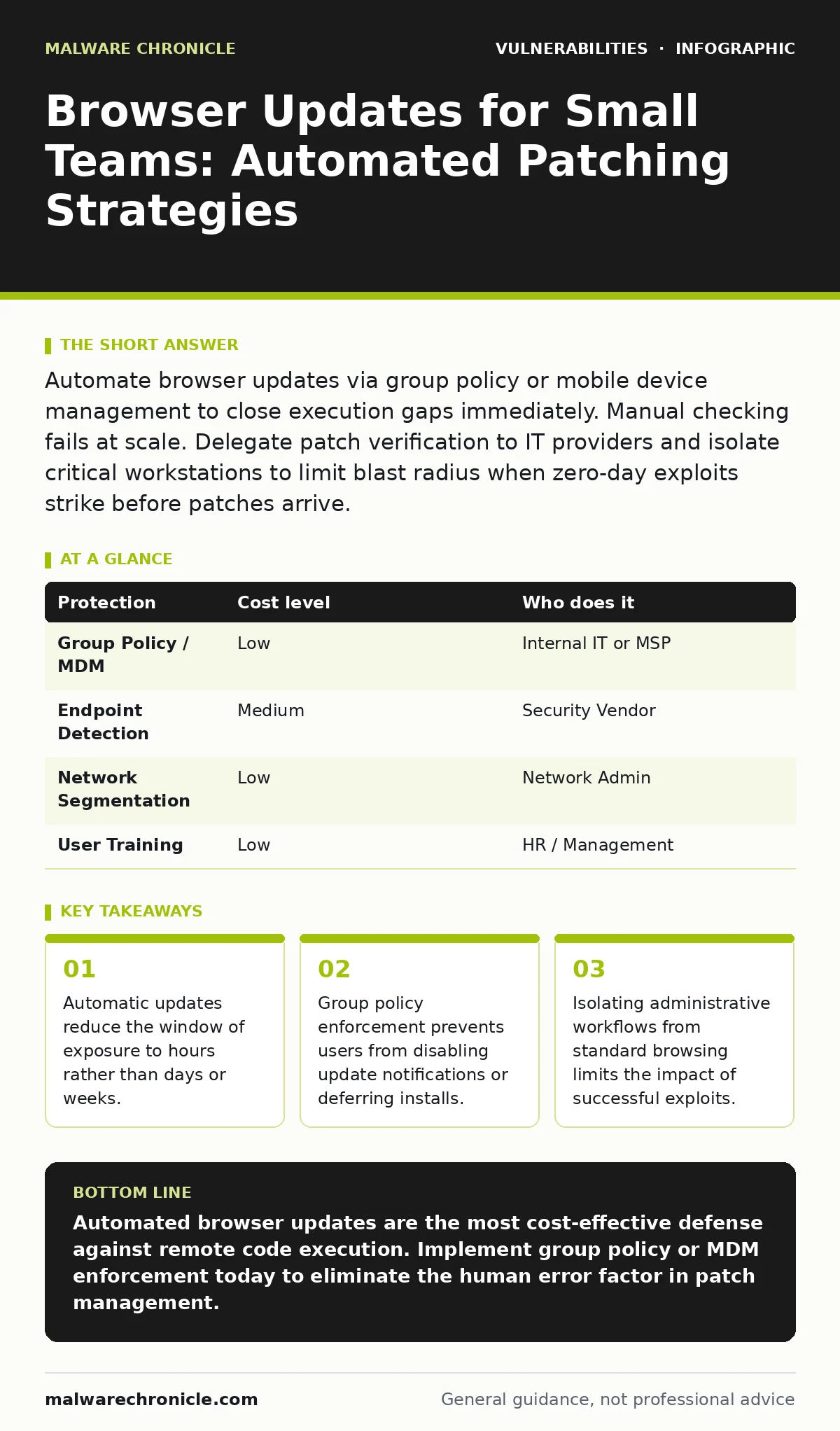
Automate browser updates via group policy or mobile device management to close execution gaps immediately. Manual checking fails at scale. Delegate patch verification to IT providers and isolate critical workstations to limit blast radius when zero-day exploits strike before patches arrive.
The Execution Gap in Small Teams
Small organizations often assume that individual user responsibility is sufficient for security hygiene. This assumption fails because human attention is finite and inconsistent. When a browser vulnerability is disclosed, there is a period between the patch release and the moment every device applies it. This window is the execution gap. Attackers automate their scanning tools to find devices within this window. You cannot rely on staff to prioritize updates over urgent projects.
The browser is not just a viewing tool; it is a complex application with a JavaScript engine, a rendering engine, and network stack. Each component is a potential entry point. If you do not manage updates centrally, you are gambling that every employee will notice a notification and act on it immediately. They will not.
Why Manual Updates Fail at Scale
Manual updates introduce friction. Friction leads to deferral. When a browser prompts for an update during a critical task, the user often chooses to "Remind Me Later." This delay can last days or weeks. In that time, the device remains vulnerable to exploits that have been public knowledge for some time.
Furthermore, manual processes lack verification. You may believe everyone updated, but without a log or audit trail, you are guessing. One unpatched machine can serve as a foothold for lateral movement within your network. The cost of a single breach far exceeds the cost of automation tools.
Affordable Automation Mechanisms
You do not need expensive enterprise suites to automate browser updates. Built-in operating system features are sufficient for most small businesses. Group Policy Objects (GPO) in Windows environments allow you to enforce update settings across all joined devices. You can configure the policy to install updates automatically and restart the machine if necessary.
For Mac users, Mobile Device Management (MDM) solutions provide similar control. Many MDM platforms offer free tiers for small device counts. These tools push configuration profiles that disable the user’s ability to defer updates. This removes the choice entirely, ensuring uniformity.
| Protection | Cost level | Who does it |
|---|---|---|
| Group Policy / MDM | Low | Internal IT or MSP |
| Endpoint Detection | Medium | Security Vendor |
| Network Segmentation | Low | Network Admin |
| User Training | Low | HR / Management |
The Hidden Cost of "Stability"
Many teams disable automatic updates to prevent unexpected restarts or compatibility issues with legacy software. This is a false economy. The risk of a ransomware infection or data exfiltration is exponentially higher than the inconvenience of a scheduled restart. You can mitigate the restart issue by configuring updates to install only during off-hours.
Suppose your team uses a specialized plugin that breaks with a new browser version. Instead of disabling updates globally, you should isolate the devices that need the legacy plugin. These devices should not have access to the internet or sensitive internal data. Compartmentalization protects the wider network while accommodating technical constraints.
What to Delegate to IT Providers
If you lack in-house expertise, delegate the configuration and monitoring of update policies to a Managed Service Provider (MSP). Do not delegate the decision of whether to update. The provider should implement the technical controls, but you must set the policy.
Ask your provider to verify that update mechanisms are active on all endpoints. They should provide regular reports showing patch compliance rates. If a device fails to update, the provider must have a remediation process. This might involve remote diagnostics or physical inspection.
See also: Security Advisories: Small Business Patching Strategy · Automatic Software Updates: Security Benefits and Hidden Costs
Questions for Your IT Provider
Before hiring an IT provider or auditing your current one, ask these specific questions about their update management strategy:
- How do you enforce browser updates on devices that are not connected to the corporate network?
- What is your process for testing updates before deploying them to the entire organization?
- How do you handle devices that run legacy software incompatible with the latest browser versions?
- Can you provide a log of failed update attempts and the steps taken to resolve them?
- Do you monitor for zero-day vulnerabilities and apply mitigations before official patches are available?
Configuration Hardening Beyond Updates
Updates alone are not enough. You must also reduce the attack surface. This is where configuration hardening comes in. Disabling unnecessary features like Flash, Java, or NPAPI plugins reduces the number of components an attacker can target. Even if the browser is updated, a misconfigured plugin can still be exploited.
Refer to our guide on security misconfigurations for a detailed list of settings to review. Disabling automatic execution of scripts from untrusted sources adds another layer of defense. It is also worth reviewing our section on clickjacking to understand how attackers manipulate user interaction with trusted interfaces.
The Reality of Zero-Day Threats
No update strategy protects against zero-day vulnerabilities, which are flaws unknown to the vendor and therefore unpatched. You must assume that some exploits will bypass your defenses. This is why defense in depth is necessary.
Isolate critical assets. Use separate accounts for administrative tasks. If a browser exploit succeeds on a standard user account, it should not have the privileges to install system-wide malware or access other machines. This limits the blast radius. For more on validating your defenses, see our guide on penetration testing.
Maintaining an Accurate Asset List
You cannot protect what you do not know exists. Shadow IT, where employees use personal devices or unauthorized software, creates blind spots. These devices often lack update enforcement.
Maintain a current IT asset inventory that includes all devices with internet access. Regularly audit this list to remove decommissioned devices and add new ones. If a device is not in your inventory, it is likely not protected by your update policies.
Conclusion of Immediate Actions
Start by auditing your current update settings. Check if your operating system allows users to defer updates. If it does, change the policy immediately. Implement a simple automation mechanism, even if it is just setting Windows Update to "Automatic."
Then, isolate any devices that cannot be updated due to legacy software requirements. Treat them as untrusted networks. This two-step approach significantly reduces your risk without requiring a large budget.
Key takeaways
- Automatic updates reduce the window of exposure to hours rather than days or weeks.
- Group policy enforcement prevents users from disabling update notifications or deferring installs.
- Isolating administrative workflows from standard browsing limits the impact of successful exploits.
Automated browser updates are the most cost-effective defense against remote code execution. Implement group policy or MDM enforcement today to eliminate the human error factor in patch management.
Frequently asked questions
How often should browsers be updated?
Browsers should be updated immediately when patches are released. Most modern browsers update automatically in the background, but you must ensure this feature is enabled and not blocked by group policy or user settings.
Can automatic updates break my business applications?
Rarely. Most web applications are designed to be compatible with modern browser standards. If you have legacy internal tools, test them in a sandbox environment before rolling out updates company-wide. Isolate legacy devices if compatibility issues persist.
Do I need to update mobile browsers separately?
Yes. Mobile operating systems manage browser updates differently than desktop OSs. Ensure your Mobile Device Management solution pushes browser updates to iOS and Android devices. Do not assume the app store handles this without verification.
What if a device is offline when an update is released?
Configure your update policy to install updates as soon as the device reconnects to the network. Do not allow indefinite deferrals. If a device is frequently offline, consider it a high-risk asset and restrict its network access.
How this guide was produced: written by the Malware Chronicle editorial team with AI assistance, checked against the public references listed below, and reviewed when the facts change. See our editorial policy or report an error.