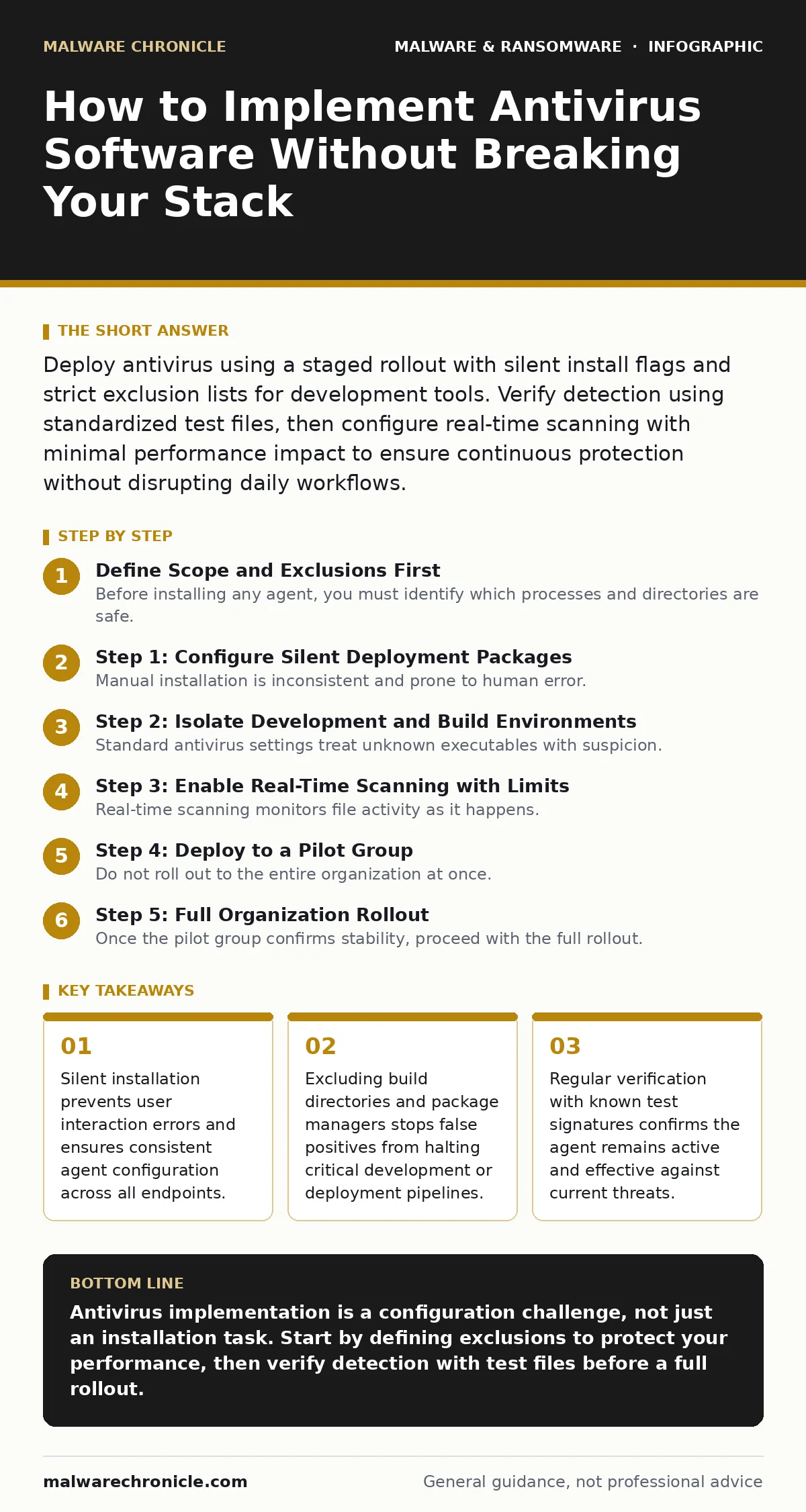
Deploy antivirus using a staged rollout with silent install flags and strict exclusion lists for development tools. Verify detection using standardized test files, then configure real-time scanning with minimal performance impact to ensure continuous protection without disrupting daily workflows.
Define Scope and Exclusions First
Before installing any agent, you must identify which processes and directories are safe. Antivirus software scans files as they are created or modified. In a technical environment, this means scanning code repositories, build artifacts, and database dumps. If the agent scans these high-volume areas, it will consume disk I/O and CPU cycles, slowing down your entire operation.
You need to create an exclusion list before the first install. This list tells the software to ignore specific paths or file types. For example, excluding your version control directories prevents the agent from scanning every commit. Excluding temporary build folders stops the agent from analyzing compiled binaries that are immediately discarded. Without these exclusions, the software behaves like a bottleneck, not a shield.
Step 1: Configure Silent Deployment Packages
Manual installation is inconsistent and prone to human error. You must package the antivirus client with configuration settings embedded in the installer. This ensures every machine receives the exact same policy. Use enterprise deployment tools to push the package. The package should include silent install flags, which suppress user prompts and accept license agreements automatically.
This approach removes the variable of user choice. A user might decline a scan or change settings, weakening your security posture. By forcing the configuration at install time, you guarantee the agent starts with the correct parameters. Check the deployment logs to confirm the package installed without errors on a test machine.
Step 2: Isolate Development and Build Environments
Standard antivirus settings treat unknown executables with suspicion. This is dangerous for software that compiles code or runs scripts. The agent may flag a newly compiled binary as malware because it lacks a digital signature or a known reputation. This is a false positive that blocks your work.
You must whitelist your development tools and output directories. Include compilers, interpreters, and package managers in the exclusion list. Also, exclude the directories where these tools write temporary files. This prevents the agent from scanning the same data multiple times. If you do not exclude these paths, the agent will interfere with the compilation process, causing builds to fail or hang.
Step 3: Enable Real-Time Scanning with Limits
Real-time scanning monitors file activity as it happens. It checks files before they execute or open. This is the primary defense against malware signatures that match known threats. However, constant monitoring is resource-intensive. You must balance security with performance.
Configure the agent to prioritize critical system directories over user documents. Set a threshold for CPU usage. If the agent exceeds this limit, it should pause non-critical scans. This prevents the system from becoming unresponsive. You are trading absolute coverage for system stability. A frozen machine is worse than a slightly delayed scan.
Step 4: Deploy to a Pilot Group
Do not roll out to the entire organization at once. Select a small group of users with diverse workloads. This pilot group acts as a safety net. They will encounter edge cases that your testing missed. Monitor their systems for the first week. Look for application crashes, slow performance, or blocked legitimate files.
Use this period to refine your exclusion list. If a pilot user reports that their database tool is blocked, add that tool to the exclusions. This iterative process reduces the risk of a widespread outage. It allows you to fix configuration errors before they affect everyone.
See also: Computer Worm Mistakes: 7 Configuration Errors That Invite Infection · Detect Wiper Malware Early: Signals, Logs, and Hidden Blind Spots
Step 5: Full Organization Rollout
Once the pilot group confirms stability, proceed with the full rollout. Use the same silent deployment package from Step 1. Schedule the installation during off-hours if possible. This minimizes the impact on productivity. Monitor the deployment dashboard for failures. Investigate any machine that fails to install the agent.
A failed installation leaves a gap in your defense. You must ensure every endpoint has the agent running. If a machine cannot connect to the update server, you need a fallback plan. Perhaps a local cache of the installer is needed for isolated networks. Consistency is key to maintaining a secure environment.
Verify Detection and Functionality
Installation is not the end of the process. You must verify that the agent is actually detecting threats. Use standardized test files to check functionality. These are harmless files designed to mimic malware. The industry standard is the EICAR test file. It is a string of characters that triggers antivirus alerts without causing harm.
Download the EICAR file and save it to a monitored directory. The agent should immediately detect it and quarantine or delete it. If it does not, your real-time scanning is broken. This verification step confirms that the software is active and communicating with the cloud or signature database. Without this check, you have no proof of protection.
Maintain and Update Policies
Antivirus software requires ongoing upkeep. Threats evolve, and so must your defenses. Keep the agent updated with the latest virus definitions. These definitions are updated frequently to catch new variants. Ensure the agent can reach the update servers. If it cannot, it will rely on outdated data, leaving you vulnerable to computer worms that spread quickly.
Review the exclusion list quarterly. New tools may be added to your workflow. Old tools may be removed. An outdated exclusion list can become a security risk. If you exclude a directory that is no longer used, you leave it unprotected. Regular reviews ensure your settings match your current environment.
- Confirm silent install package includes all exclusion paths.
- Verify EICAR test file is detected and quarantined.
- Check CPU and disk usage during a typical workload.
- Review logs for false positives from development tools.
- Ensure update servers are accessible from all networks.
Key takeaways
- Silent installation prevents user interaction errors and ensures consistent agent configuration across all endpoints.
- Excluding build directories and package managers stops false positives from halting critical development or deployment pipelines.
- Regular verification with known test signatures confirms the agent remains active and effective against current threats.
Antivirus implementation is a configuration challenge, not just an installation task. Start by defining exclusions to protect your performance, then verify detection with test files before a full rollout.
Frequently asked questions
How often should I update antivirus definitions?
Updates should occur automatically and as frequently as the vendor releases them. Daily updates are standard to catch new threats quickly.
Can antivirus slow down my computer?
Yes, if not configured correctly. Excluding high-activity directories and limiting CPU usage prevents significant performance degradation.
What if the antivirus blocks a legitimate program?
Add the program or its directory to the exclusion list. Verify the program is safe before excluding it to avoid creating a security gap.
Does antivirus protect against all malware?
No. It catches known threats and some behavioral anomalies. It does not stop social engineering or zero-day exploits that lack a signature.
How this guide was produced: written by the Malware Chronicle editorial team with AI assistance, checked against the public references listed below, and reviewed when the facts change. See our editorial policy or report an error.