
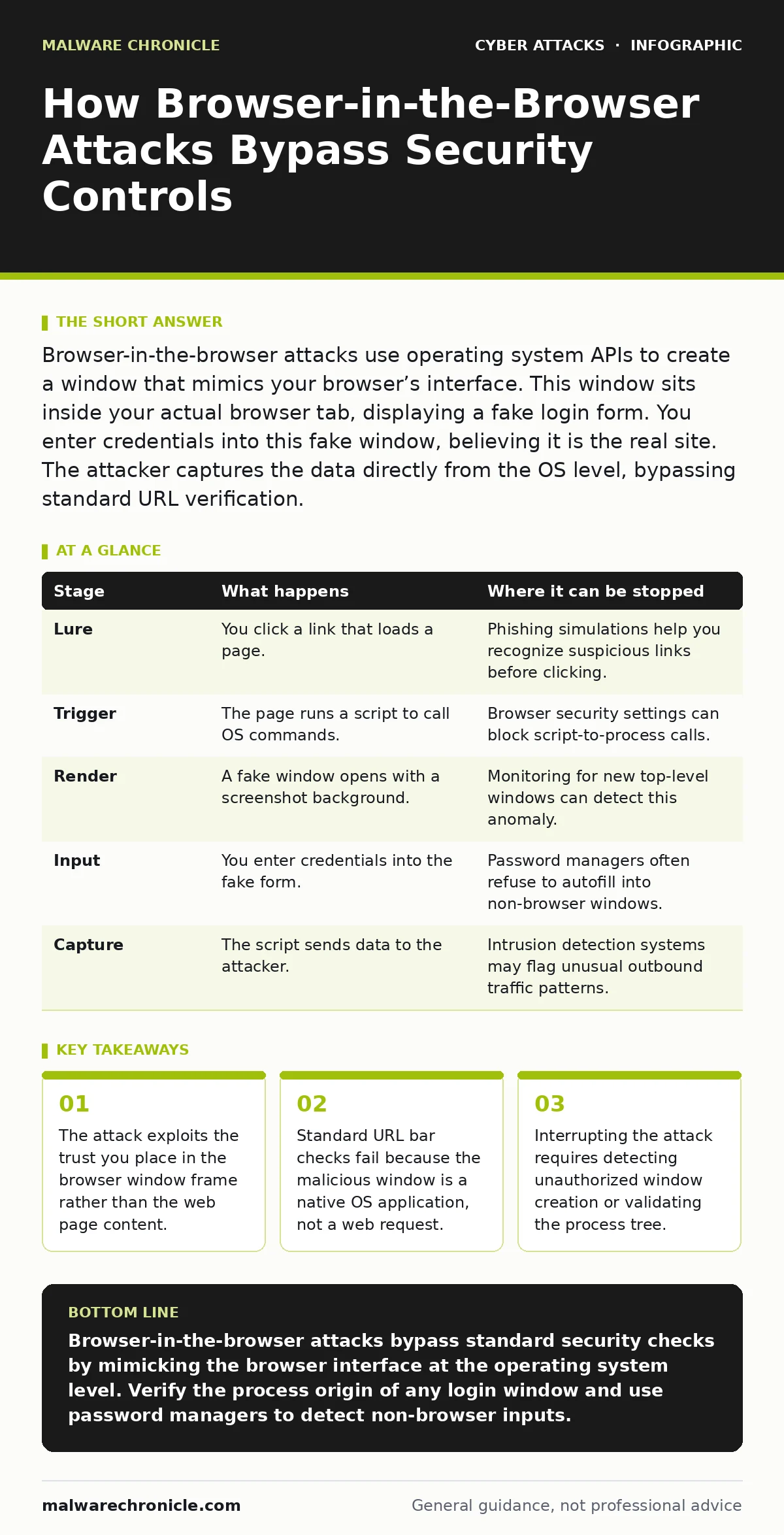
Browser-in-the-browser attacks use operating system APIs to create a window that mimics your browser’s interface. This window sits inside your actual browser tab, displaying a fake login form. You enter credentials into this fake window, believing it is the real site. The attacker captures the data directly from the OS level, bypassing standard URL verification.
The Illusion of Safety
You trust your browser to protect you. You check the address bar for the correct domain. You look for the padlock icon. These habits are good, but they are no longer sufficient against a specific class of deception. Attackers have moved beyond simple fake websites. They now build fake browsers inside your real browser. This technique is called a browser-in-the-browser attack. It relies on the fact that you identify a site by its window, not its process.
The core mechanism is deceptively simple. The attacker uses standard operating system commands to open a new window. This window is styled to look exactly like your web browser. It has tabs, an address bar, and back buttons. However, this window is not part of the browser’s rendering engine. It is a separate application launched by the operating system. Because it is a native window, it does not send HTTP requests. It captures input directly from your keyboard.
The Deceptive Entry Point
The attack begins with a standard lure. You click a link in an email or a message. This link might look like a password reset request or a security alert. The link opens your actual browser. The page loads normally. It might even be a legitimate page from a trusted vendor. The deception is not in the initial load. It is in what happens next.
Imagine you see a prompt asking for verification. The page appears to overlay a login box. In reality, the page has triggered a script. This script calls a function that requests the operating system to open a new window. On Windows, this might use PowerShell or a compiled binary. On macOS, it might use AppleScript or a shell command. The key is that the command runs in the context of your user session. It has the same permissions as you.
Constructing the Fake Interface
The attacker needs the fake window to look identical to the real one. If it looks different, you will notice the discrepancy. The attacker achieves this by capturing the current state of your browser. The script takes a screenshot of your active tab. It then creates a new window and sets the background to that screenshot. This creates a seamless visual transition. The new window appears to be part of the existing page.
To complete the illusion, the attacker draws a fake address bar on top of the screenshot. This bar displays the correct URL. It might even show the green padlock icon. The text in the address bar is static. It does not respond to clicks. It is merely an image or a text field within the fake window. The fake window also includes a fake login form. This form looks like the standard fields you use for email and password. It includes all the subtle design cues of the real site.
Capturing the Credentials
You enter your username and password into the form. You click the sign-in button. Nothing happens in the browser’s network traffic. There is no POST request to the legitimate server. Instead, the fake window captures the input locally. The data is stored in the memory of the fake application. The attacker’s script then transmits this data to a command-and-control server. This transmission might use HTTPS, making it look like normal traffic.
The attacker may also capture additional data. If you have multi-factor authentication enabled, the fake window will ask for the code. You enter the code into the same fake form. The attacker receives this code in real-time. They can then use both the password and the code to log in to your actual account. The speed of this process is critical. The attacker must use the code before it expires. This requires a fast and reliable communication channel.
The Window Management Trick
The fake window is often made to appear modal. This means it blocks interaction with the rest of the screen. You cannot click on the real browser behind it. This forces you to interact with the fake window. The attacker achieves this by setting the window properties. They can make the fake window appear on top of all other windows. They can also disable the minimize and maximize buttons. This makes it feel like a system dialog.
On some operating systems, the attacker can hide the taskbar entry for the fake window. This makes it harder to identify the process in your task manager. The window might appear as a generic system process. Without detailed inspection, you cannot tell it is malicious. The attacker relies on your assumption that the window is part of the browser. This assumption is the primary vulnerability.
See also: What Is the Purpose of Security Awareness Training? · Email Filtering FAQ: 8 Answers for Secure Inbox Management
Interrupting the Attack Chain
You can stop this attack at several points. The first point is the initial script execution. If your browser blocks scripts from calling external processes, the attack fails. This is not a default setting in most browsers. You must configure your browser or use a security tool to restrict these calls. The second point is the window creation. If you monitor for new windows appearing, you can detect the anomaly.
The third point is the input capture. If you use a password manager, it may not autofill into the fake window. This is a strong indicator that something is wrong. Password managers check the domain of the active tab. The fake window has no domain. It is a native application. The password manager will refuse to fill the fields. This mismatch is a reliable signal.
| Stage | What happens | Where it can be stopped |
|---|---|---|
| Lure | You click a link that loads a page. | Phishing simulations help you recognize suspicious links before clicking. |
| Trigger | The page runs a script to call OS commands. | Browser security settings can block script-to-process calls. |
| Render | A fake window opens with a screenshot background. | Monitoring for new top-level windows can detect this anomaly. |
| Input | You enter credentials into the fake form. | Password managers often refuse to autofill into non-browser windows. |
| Capture | The script sends data to the attacker. | Intrusion detection systems may flag unusual outbound traffic patterns. |
Beyond the Login Prompt
This technique is not limited to login screens. Attackers can use it for any sensitive input. They can mimic two-factor authentication prompts. They can mimic software update dialogs. They can mimic certificate warnings. The key is that the fake window looks like a system or browser dialog. You must verify the source of any dialog that asks for credentials.
Check the process tree if you suspect an attack. On Windows, you can use Task Manager to see the parent process of the window. On macOS, you can use Activity Monitor. If the window is not a child of your browser process, it is suspicious. This requires technical knowledge, but it is a definitive check.
Designing for Resilience
As a developer, you can make your applications more resistant to this attack. One method is to use browser-native authentication flows. These flows are harder to mimic because they are controlled by the browser, not the web page. Another method is to detect if your page is being framed or if external windows are being opened.
You can also implement checks for user interaction. If a login prompt appears immediately after a page load, it is suspicious. Legitimate sites usually have a delay or require a user action to trigger the login. You can also use conditional access policies to require additional verification for logins from new devices or locations. This adds a layer of protection even if the attacker captures the initial credentials.
The Human Element
The most effective defense is awareness. You must understand that the window frame is not a guarantee of safety. The address bar is not a guarantee of safety. You must look for inconsistencies. Is the window behaving strangely? Is it blocking other windows? Is your password manager refusing to fill it? These are signs of an attack.
Training is essential. Phishing simulations can help users recognize the initial lure. But they must also be trained to recognize the fake window. This is a newer threat. Most training materials do not cover it. You must update your security awareness programs to include this scenario.
Incident Response Considerations
If you suspect a browser-in-the-browser attack, you must act quickly. The attacker may have already captured your credentials. You should change your password immediately. You should also revoke any active sessions. Your cyber incident response team should be notified. They can investigate the scope of the compromise.
They can check for other signs of intrusion. They can analyze the script that triggered the attack. They can block the command-and-control server. They can also update your security policies to prevent similar attacks. This is a complex threat. It requires a coordinated response.
Key takeaways
- The attack exploits the trust you place in the browser window frame rather than the web page content.
- Standard URL bar checks fail because the malicious window is a native OS application, not a web request.
- Interrupting the attack requires detecting unauthorized window creation or validating the process tree.
Browser-in-the-browser attacks bypass standard security checks by mimicking the browser interface at the operating system level. Verify the process origin of any login window and use password managers to detect non-browser inputs.
Frequently asked questions
Can antivirus software detect browser-in-the-browser attacks?
Some advanced endpoint detection tools can detect the creation of suspicious windows or the execution of scripts that call OS commands. Standard antivirus may not catch it if the script is allowed.
Does this attack work on mobile devices?
Mobile operating systems have stricter sandboxing. It is harder to create a fake window that mimics the browser. However, attackers may use other methods like overlay attacks on Android.
How can I tell if my password manager detected a fake window?
If your password manager does not offer to autofill your credentials, it may have detected that the window is not a legitimate browser tab. This is a strong indicator of a fake interface.
Are there any browser settings that prevent this?
Some browsers allow you to restrict scripts from launching external applications. Enabling these settings can prevent the initial trigger of the attack. Check your browser’s security preferences.
How this guide was produced: written by the Malware Chronicle editorial team with AI assistance, checked against the public references listed below, and reviewed when the facts change. See our editorial policy or report an error.